
You've built a list of places for your next trip. Now you want a cover image for the PDF, a thumbnail for the link you send friends, or a hero shot for your travel blog. Stock photos feel generic and paid design tools are overkill for one image.
Bing's AI Image Generator solves this in about a minute. It's free, runs on Microsoft's own AI image model, and works right inside Microsoft Edge with no sign-in at all.
What Is Bing AI Image Generator?
Bing AI Image Generator (also called Bing Image Creator) is Microsoft's free text-to-image tool. You type what you want, it generates four pictures.
Under the hood it runs on a Microsoft-built image generation model — not a rebranded OpenAI engine. It's tuned for editorial, conceptual, and design-style prompts, which is why structured inputs (color codes, composition, style constraints) tend to land well. Microsoft ships it free inside Bing and Copilot.
Each prompt returns four images. You get around 15 fast "boosted" generations per day; after that, images still generate, just slower. No credit card, no upgrade prompt.
How to Use It in 4 Steps
- Go to bing.com/images/create.
- Sign in with any Microsoft, Outlook, or Hotmail account — or skip this step entirely if you're in Microsoft Edge, where Copilot generates images without a sign-in. In other browsers, creating an account takes about 30 seconds.
- Type your prompt in the box and click Create.
- Wait 5–15 seconds. You'll get four images. Click any one to open it full-size, then use the Download button.
That's the whole flow. No settings panel, no image size picker, no model selector. Bing defaults to square 1024×1024 images.
If you don't like any of the four results, click Create again with the same prompt — you'll get four fresh images. Small prompt tweaks usually matter more than regenerating the same words.
Prompt Tips for Travel Images
Good AI images come from structured prompts. Use this formula:
[Place or vibe] + [Subject] + [Style] + [Lighting or mood]
Three travel-focused examples that work well:
- "Minimalist watercolor illustration of Lisbon rooftops at golden hour, pastel colors, soft light"
- "Flat vector icon set for a Tokyo ramen guide, warm earthy palette, white background"
- "Retro postcard design with the words 'Bali 2026', palm trees, tropical colors, vintage print texture"
Three tips that make a real difference:
- Name a style. "Watercolor", "flat vector", "retro postcard", "line drawing", "risograph print" all give better results than no style word at all.
- Add a lighting cue. "Golden hour", "soft overcast light", "neon night" shape the mood more than any other word.
- Keep it specific. "Trattoria in Rome" beats "restaurant in Europe" every time.
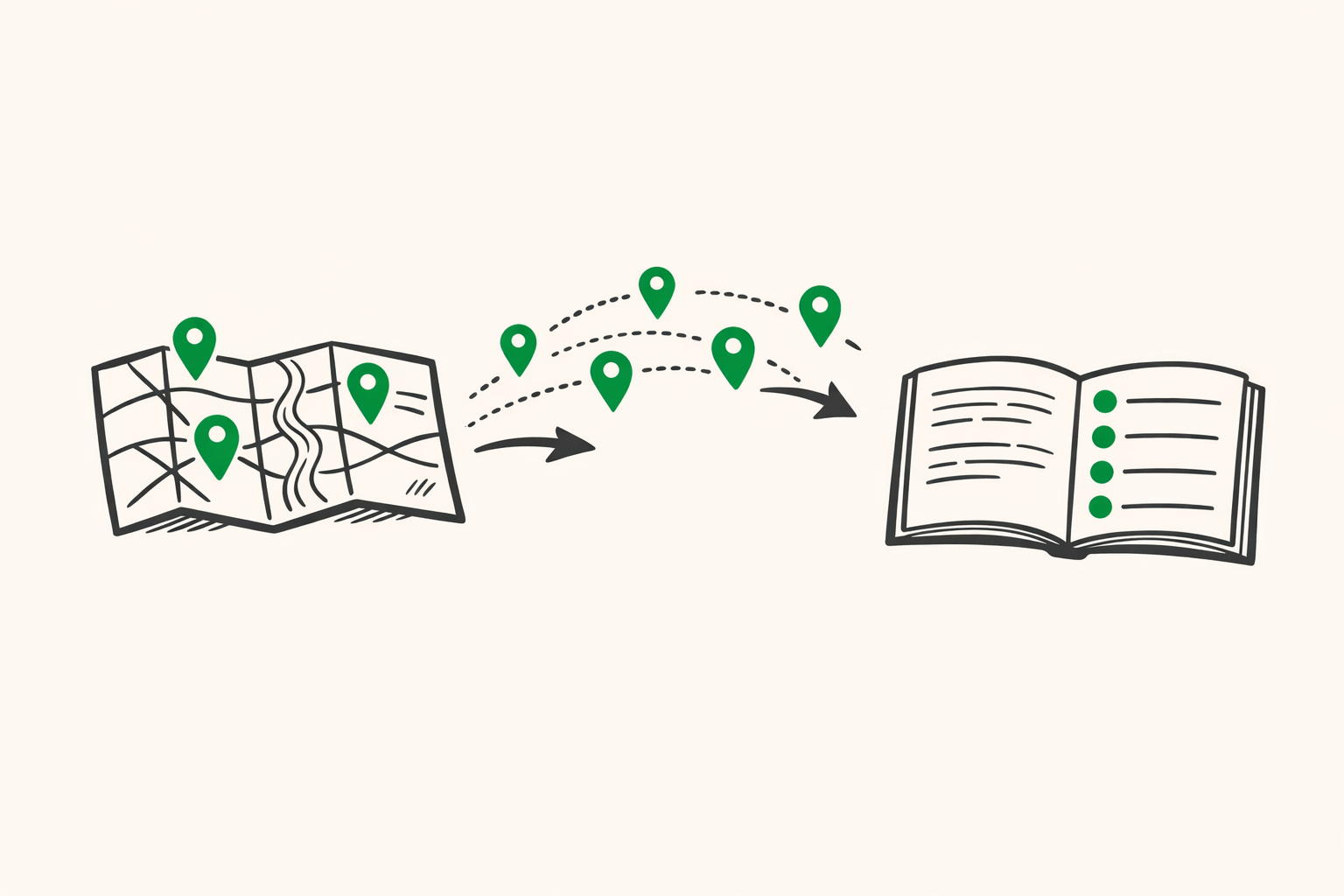
Here's the exact prompt behind the illustration at the top of this article — a more specialized example that blends a travel-guide brief with a strict brand palette:
Editorial flat illustration showing a folded paper map on the left with scattered location pins, the pins flowing through the air and landing into a neat numbered list inside an open printed travel guide booklet on the right, visual story of messy saved places being organized into a tidy exportable guide, palette strictly limited to: warm ivory cream background (#FAFAF5), charcoal dark line work (#1A1A1A), vibrant emerald green (#1EA94C) used only for the pins and the list bullets, clean minimal editorial magazine style, slight hand-drawn feel, generous white margins, no text, no letters, no numbers, no watermarks.
Using the Images with Your Travel List
Where these AI images fit into a trip you're actually planning:
- PDF cover. Export Google Maps saved places to a PDF with ExportMyMap, then add the AI-generated image on the first page as a header. Your trip guide now looks like a product, not a spreadsheet.
- Share-link preview. When you send a shareable travel list to friends, a custom hero image in the chat preview gets more clicks than a generic map icon.
- Travel blog hero. If you write about your trip afterward, a styled AI image feels more intentional than another stock photo everyone's seen.
If you don't already have an export of your saved places, grab one at exportmymap.com or with the Chrome Extension.
Limitations and Commercial Use
Bing blocks a few categories: real faces of public figures, trademarked brands and logos, explicit content, and anything violent or hateful. If your prompt trips a filter, you'll see an empty result with no clear error — rephrase and try again.
Microsoft's terms allow you to use generated images for personal and commercial projects, including travel guides, PDFs, and blog posts. The images themselves generally aren't copyrightable (AI output isn't eligible in most jurisdictions), so nobody owns them exclusively — including you. For a personal trip guide, that's fine.
Frequently Asked Questions
Is it really free? Yes. Around 15 fast generations per day, slower generations after that, no payment prompt anywhere in the flow.
Do I need to sign in? Not in Microsoft Edge — Copilot generates images there without an account. In Chrome, Safari, or Firefox, you'll need a free Microsoft account.
Can I use the images commercially? Yes, for most purposes. Microsoft's content terms allow commercial use — read their service agreement before publishing at scale.
Does it work on mobile? Yes. Open bing.com/images/create in any mobile browser or use the Bing app. The experience is the same as desktop.
How does it compare to ChatGPT's image generator? They run on different models — Bing uses Microsoft's own image engine, ChatGPT uses OpenAI's DALL-E. Both produce high-quality results; Bing has the edge on being free and tightly integrated into Copilot, while DALL-E tends to be stronger on photorealism.
Summary
Free AI images plus your exported travel list equals a shareable, good-looking guide in minutes. Write a short, specific prompt, pick the best of four results, drop it on your PDF cover.
Export your saved places at exportmymap.com or with the Chrome Extension.