
Apri Luoghi speciali in Google Maps sul computer, scorri fino in fondo e il conteggio si ferma a 200. Accanto al profilo, però, Google indica che ne hai salvati centinaia o migliaia. Non sono spariti: la vista desktop smette semplicemente di mostrare la lista dopo 200 elementi.
Ci sono due modi per aggirare il problema. Il primo è adatto a chi supera di poco il limite; il secondo usa Google Takeout e funziona con qualsiasi quantità.
Perché vedi solo 200 luoghi
Il limite riguarda l’interfaccia desktop, non l’account. Google conserva tutti i tuoi Luoghi speciali, ma il browser ne visualizza soltanto 200.
Le app Google Maps per iPhone e Android mostrano in genere la lista completa. Se il telefono ne conta 1.247 e il portatile esattamente 200, hai incontrato questo difetto dell’interfaccia, non una perdita di dati.
Soluzione 1: aggiungi i luoghi in eccesso ad altre liste
Con 210–250 elementi, dividerli è la via più semplice. Uno stesso luogo può stare in più liste Google Maps, quindi non devi rimuovere la stella.
- Apri Luoghi speciali sul telefono.
- Scegli una categoria numerosa, per esempio ristoranti, hotel o musei.
- Tocca Salva e aggiungi quei luoghi a una lista personalizzata, lasciandoli anche tra i Luoghi speciali.
- Quando la selezione da esportare ha meno di 200 elementi, aprila sul computer.
- Avvia l’estensione ExportMyMap, scegli la lista ed esporta.
La stella originale rimane e, nel frattempo, la raccolta diventa più ordinata. Oltre circa 250–300 luoghi, però, farlo a mano non conviene più: meglio Takeout.
Soluzione 2: Google Takeout per qualsiasi quantità
Google Takeout è lo strumento ufficiale per scaricare i dati del tuo account. Non dipende dalla lista visibile sul desktop e fornisce direttamente il file con i luoghi salvati.
Takeout restituisce però dati grezzi con identificativi e coordinate, non indirizzi, telefoni, orari, siti web o valutazioni. L’importazione Takeout di ExportMyMap completa queste informazioni dopo il caricamento.
Passaggio 1: apri Google Takeout e seleziona Maps (i tuoi luoghi) {#step-1-select-maps-your-places}
Vai su takeout.google.com con l’account che contiene i luoghi.
Fai clic su Deseleziona tutto, cerca Maps (i tuoi luoghi) e seleziona soltanto quella casella.
Maps (i tuoi luoghi) — Dati relativi ai Luoghi speciali e alle recensioni.
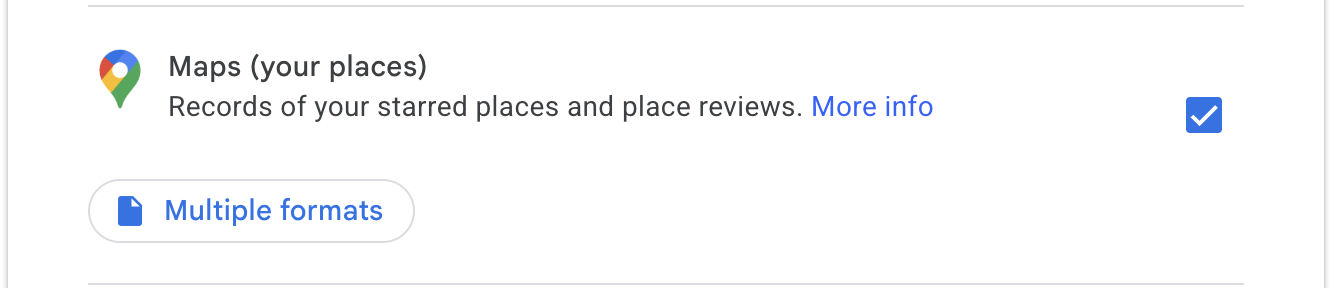
Non selezionare la voce distinta Maps senza «i tuoi luoghi»: contiene contributi, modifiche e altri dati, non la lista che serve qui.
Passaggio 2: vai al passaggio successivo {#step-2-next-step}
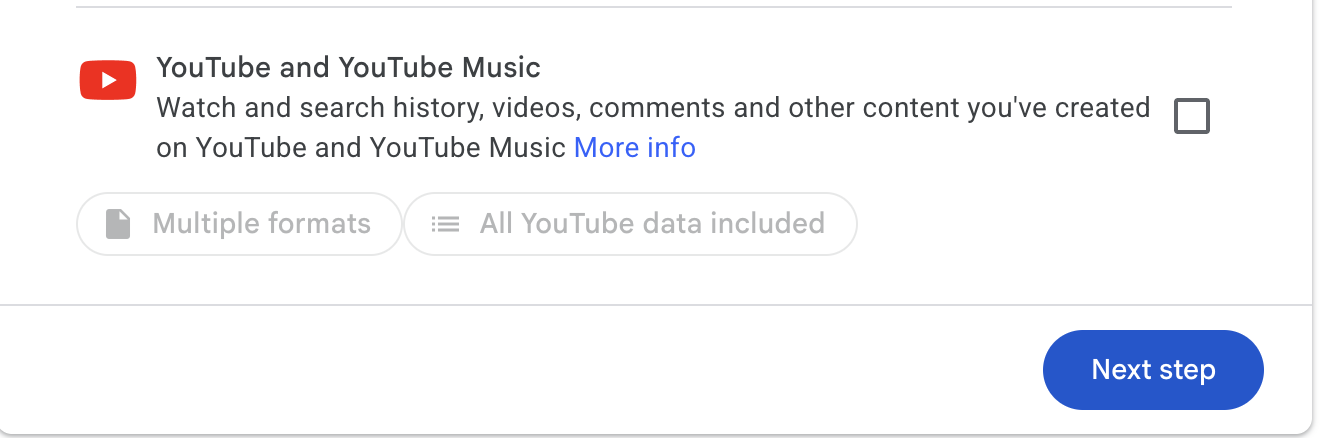
Controlla che gli altri prodotti siano disattivati, scorri in fondo e fai clic su Passaggio successivo.
Passaggio 3: esporta una volta {#step-3-create-export}
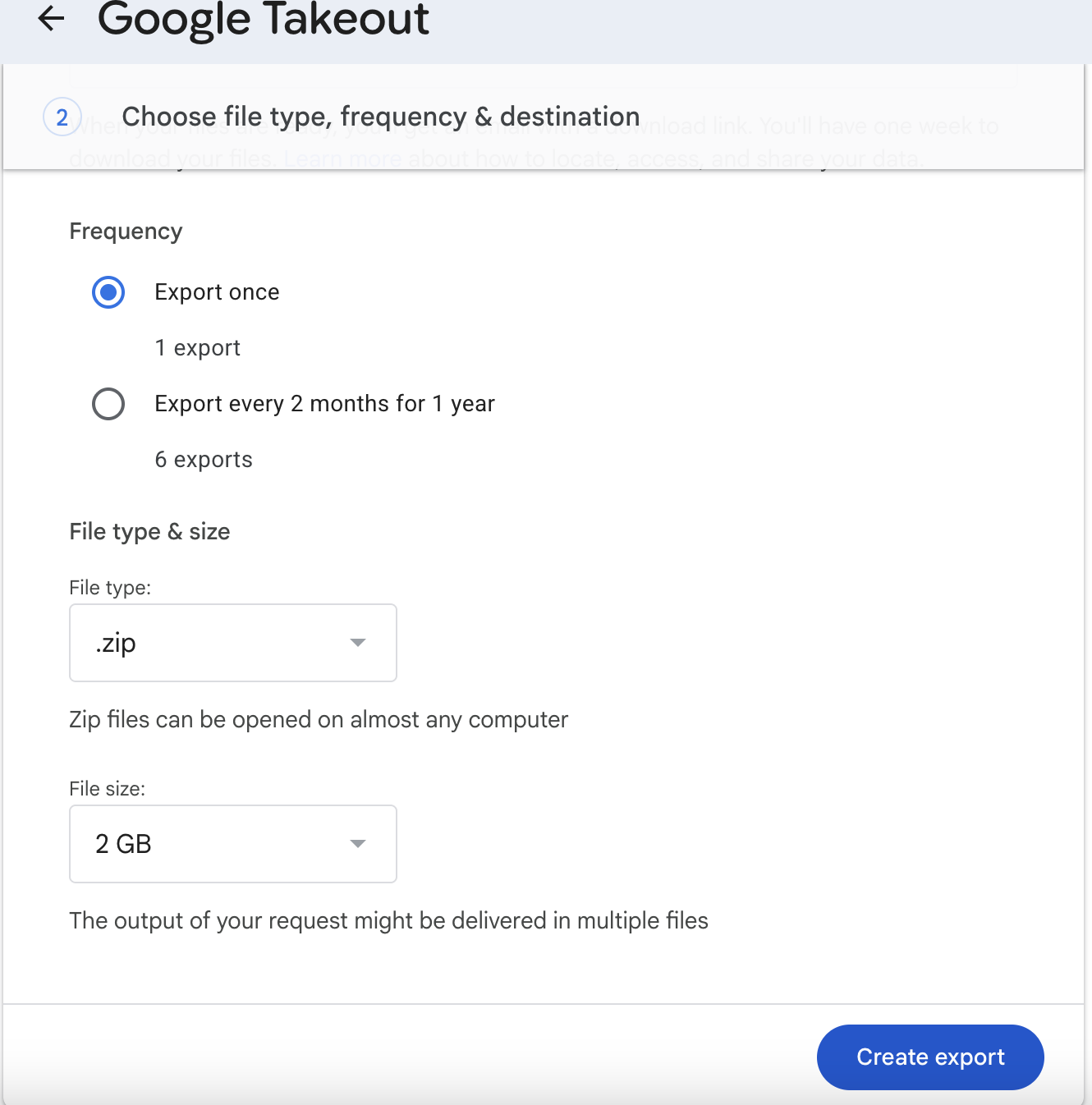
Nella schermata seguente scegli:
- Frequenza: Esporta una volta;
- Tipo di file: .zip;
- Dimensione: 2 GB sono più che sufficienti per una lista di luoghi.
Fai clic su Crea esportazione.
Passaggio 4: attendi Google {#step-4-wait-for-google}
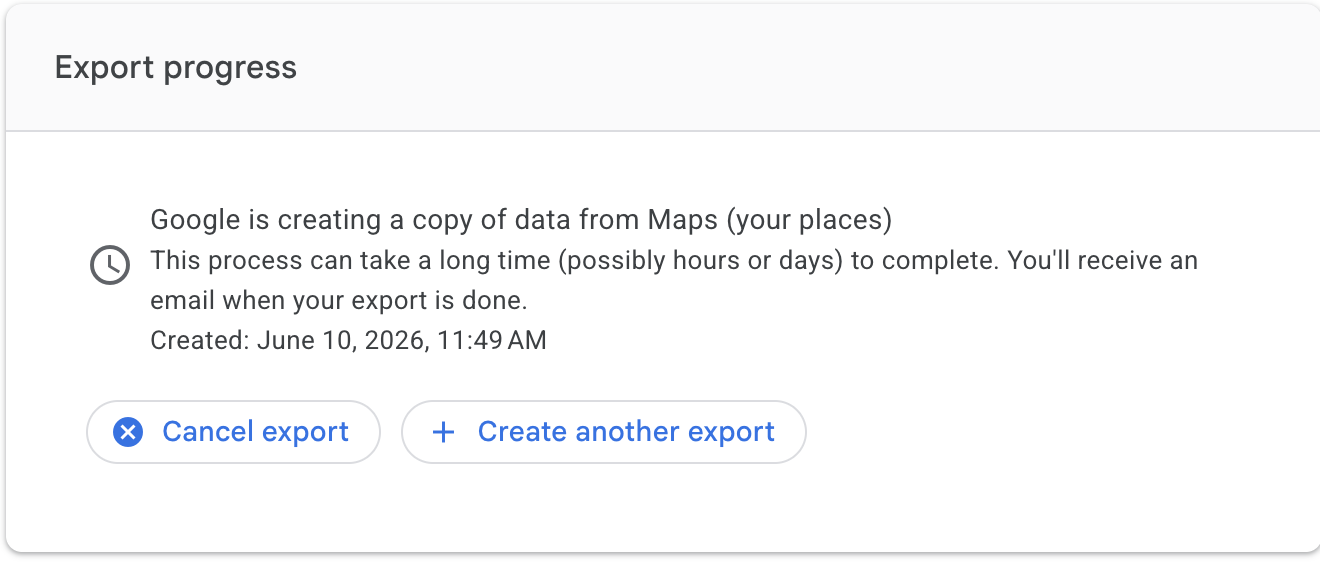
Google prepara l’archivio. Di solito bastano pochi minuti, ma può richiedere ore o giorni. Puoi chiudere la scheda: riceverai un’e-mail quando sarà pronto.
Passaggio 5: scarica dall’e-mail {#step-5-download-archive}
Apri il messaggio di Google, gestisci la richiesta Takeout e scarica lo ZIP.
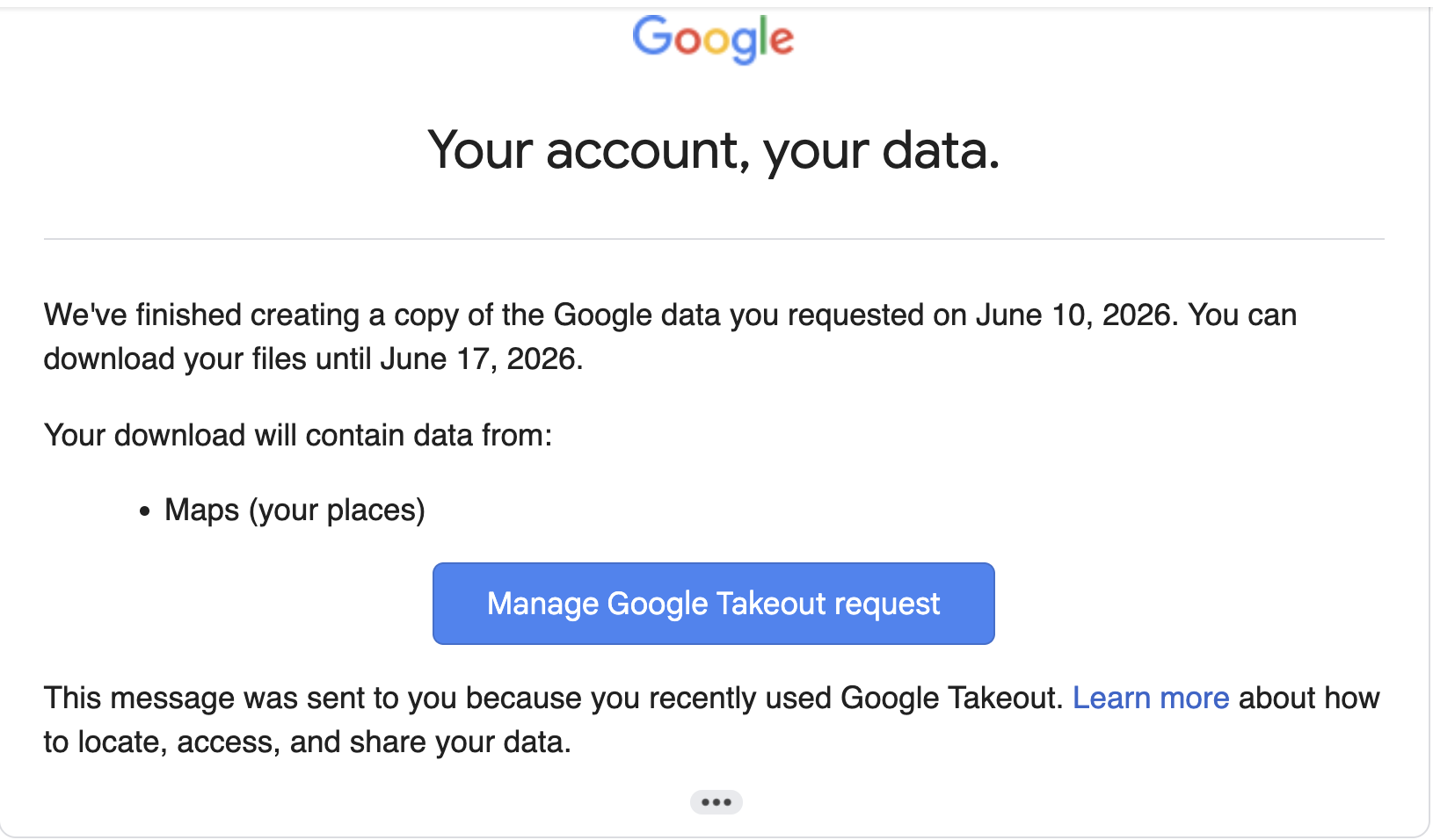
Il link resta valido per sette giorni. Dopo dovrai creare una nuova esportazione.
Passaggio 6: trova Saved Places.json {#step-6-find-saved-places-json}
Estrai lo ZIP. Il file si trova in Takeout/Maps (i tuoi luoghi)/Saved Places.json.
È un GeoJSON: contiene un elemento per luogo, le coordinate e il relativo link Google Maps. Gli altri dettagli non sono ancora presenti.
Passaggio 7: carica su ExportMyMap {#step-7-upload-to-exportmymap}
Apri l’importazione Takeout e trascina Saved Places.json sulla pagina. Inserisci l’e-mail legata al piano annuale e fai clic su Avvia arricchimento.
ExportMyMap aggiunge nome verificato, indirizzo completo, telefono, sito, orari, valutazione e dati geografici, quindi prepara JSON, CSV, Excel, GeoJSON, KML e GPX insieme a un archivio ZIP. Per qualche centinaio di luoghi servono alcuni minuti.
Un bonus del piano annuale
L’importazione Takeout è un extra incluso nel piano annuale: un’importazione all’anno fino a 5.000 luoghi.
Per una lista più corta, l’estensione Chrome è più immediata: nessun caricamento e nessuna attesa. Puoi installarla dal Chrome Web Store.
Riepilogo rapido
- Sul computer, Luoghi speciali si ferma a 200; sul telefono la lista completa resta visibile.
- Poco più di 200: aggiungi parte dei luoghi a liste personalizzate e usa l’estensione.
- Centinaia o migliaia: Google Takeout e poi
Saved Places.jsonnell’importazione Takeout.
Se Takeout impiega troppo tempo o il file viene rifiutato, scrivici tramite l’indirizzo di assistenza sul sito.